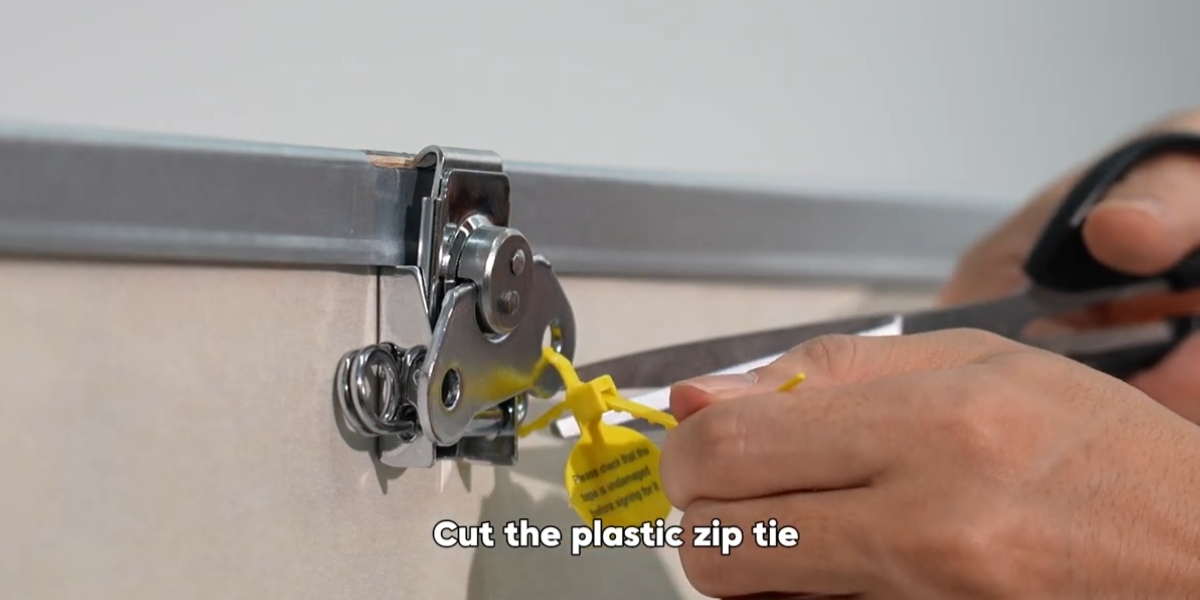
Cut the plastic zip ties securing the outer packaging.
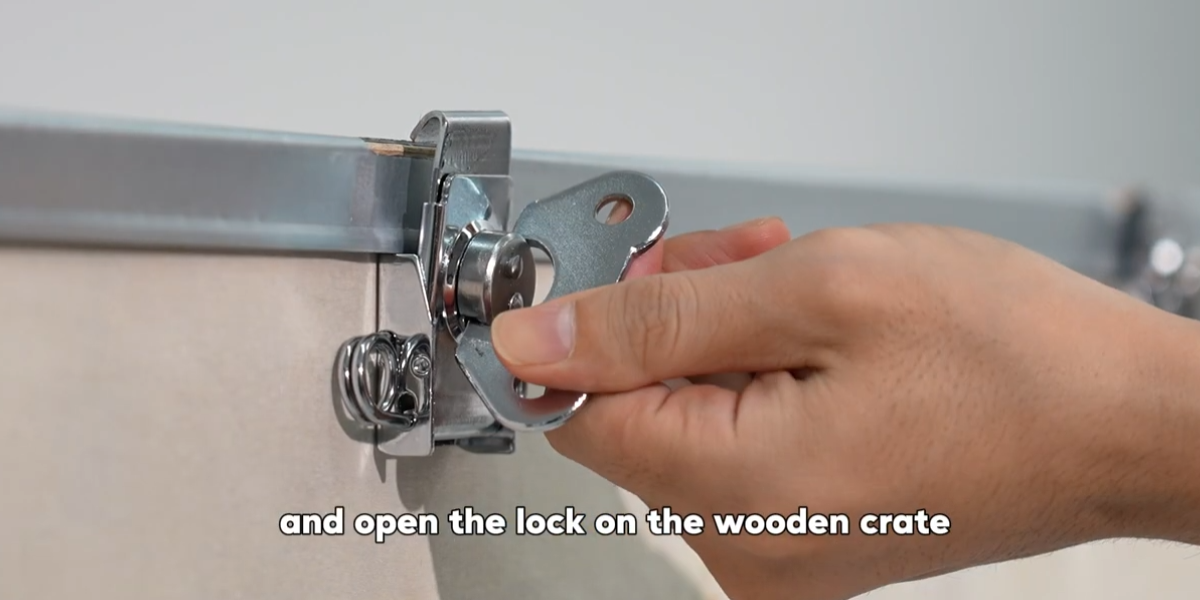
Release the locks on the wooden crate side panels.
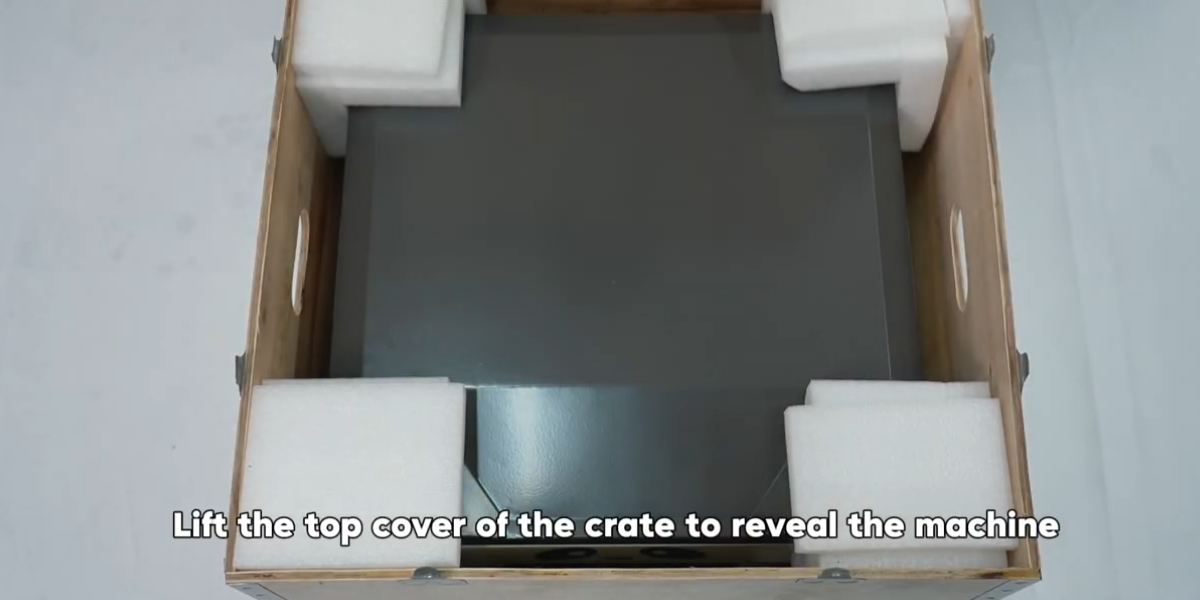
Lift the top cover of the crate to reveal the printer.
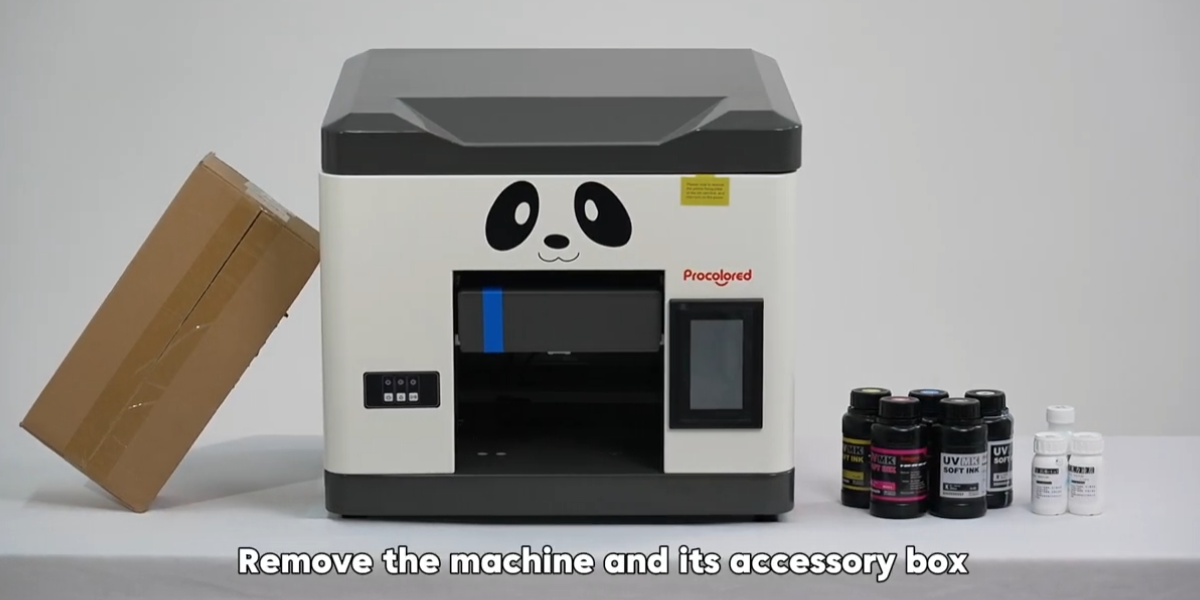
Carefully remove the machine and the accessory box.
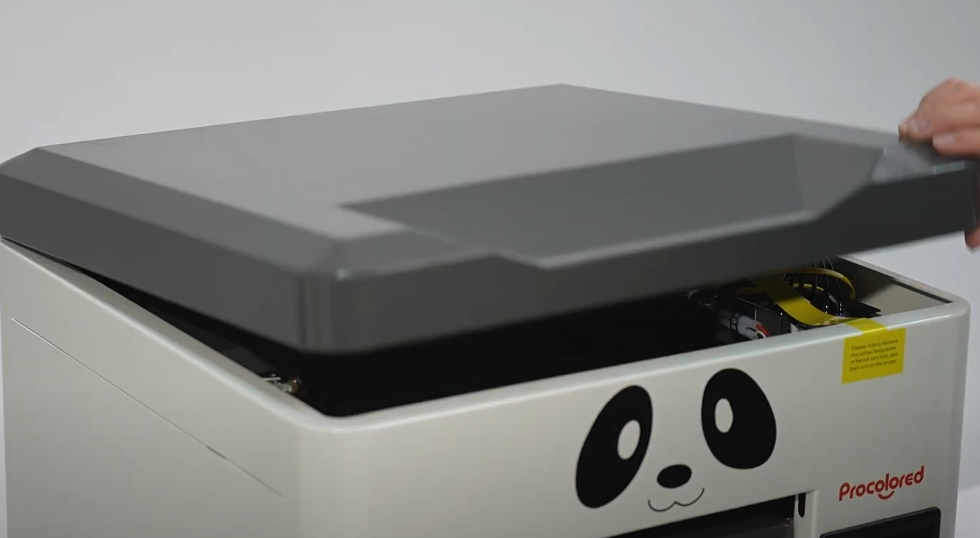
Open the machine cover and cut the zip tie on the print head.
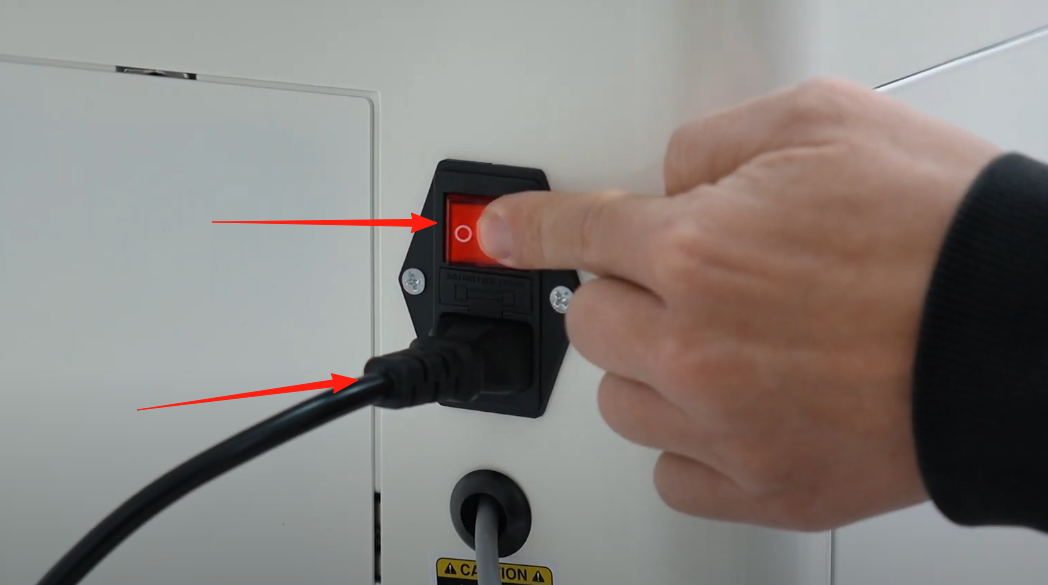
Connect the power cable and switch the main power on.
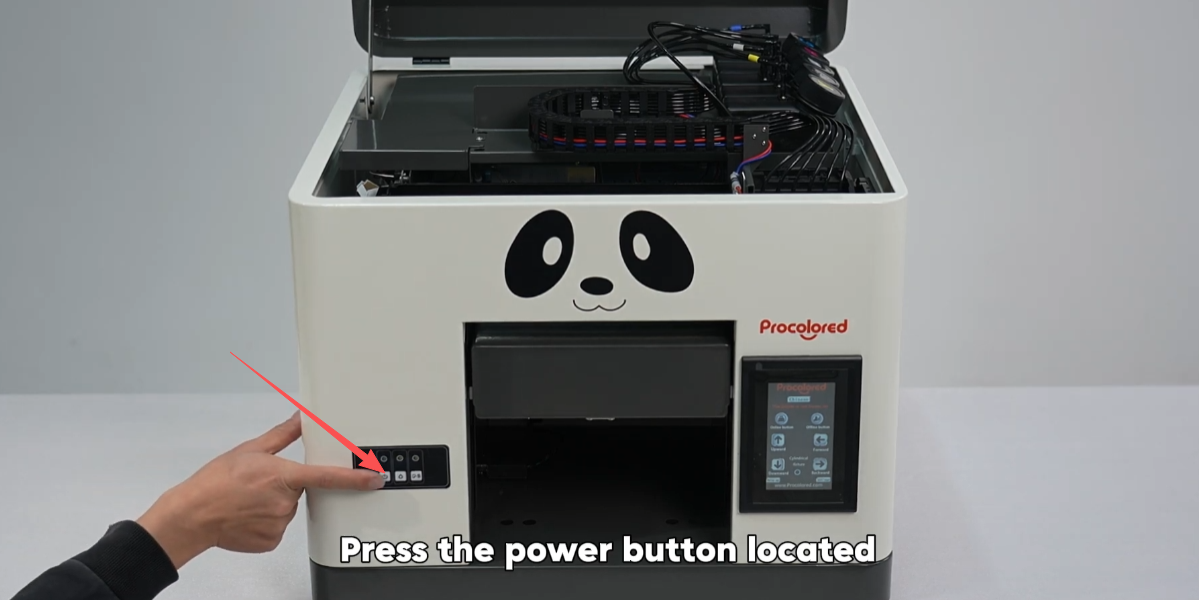
Press the front power button to start the system.
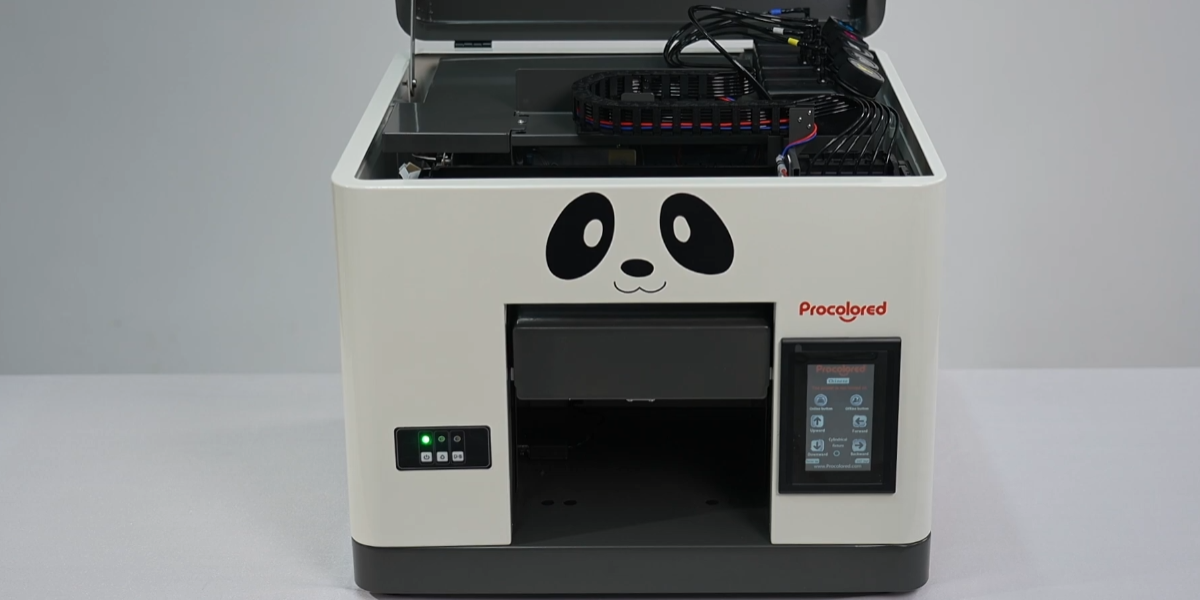
Wait for the printer to complete its initial self-check process.
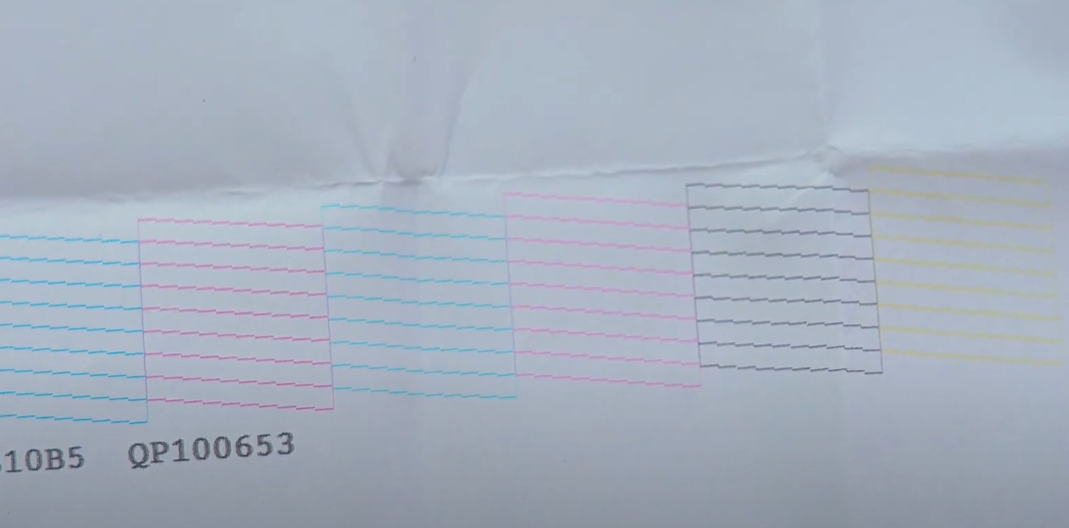
Locate the factory test page inside the carriage area.
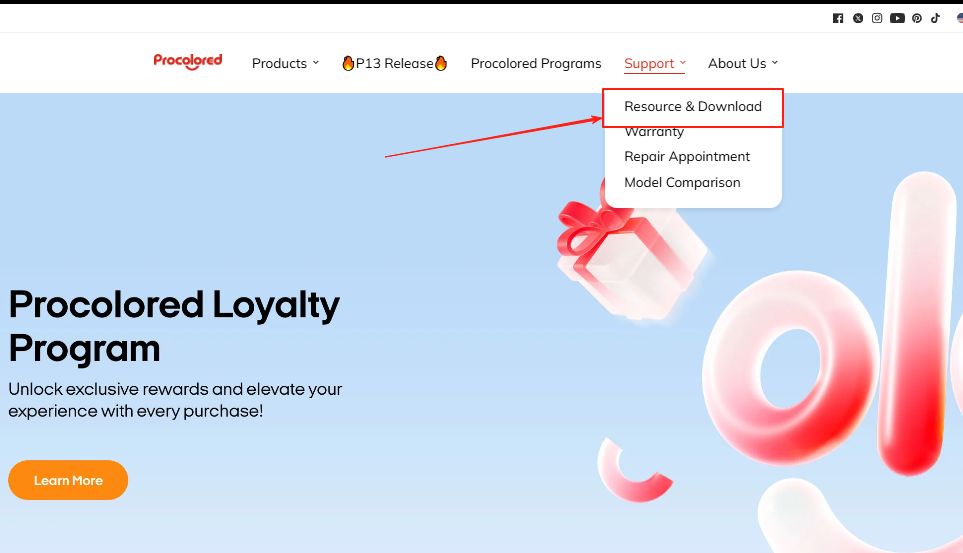
Please install the Pro RIP software from Procolored official website, Resource & Download.
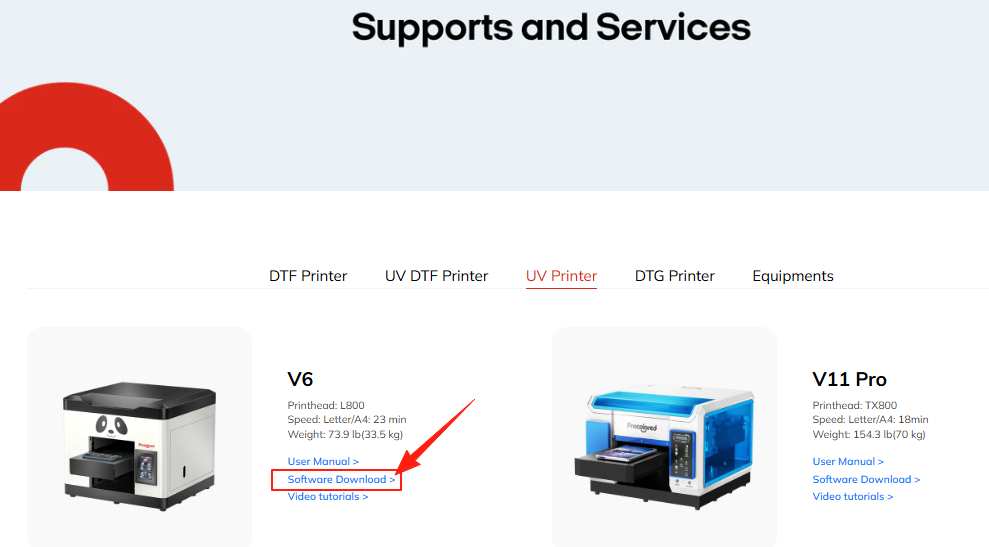
Choose the model V6 and download the software and driver. https://bit.ly/3V47Tas
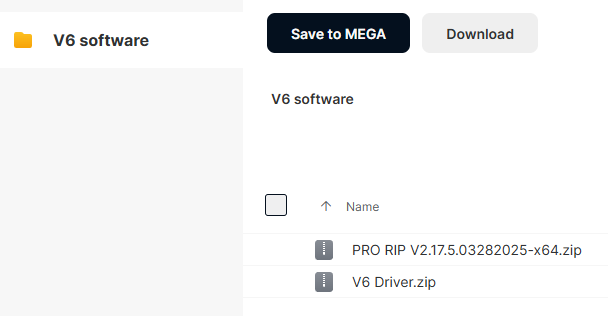
Open the V6 driver. Ensure printer power is ON and data cable is properly connected.
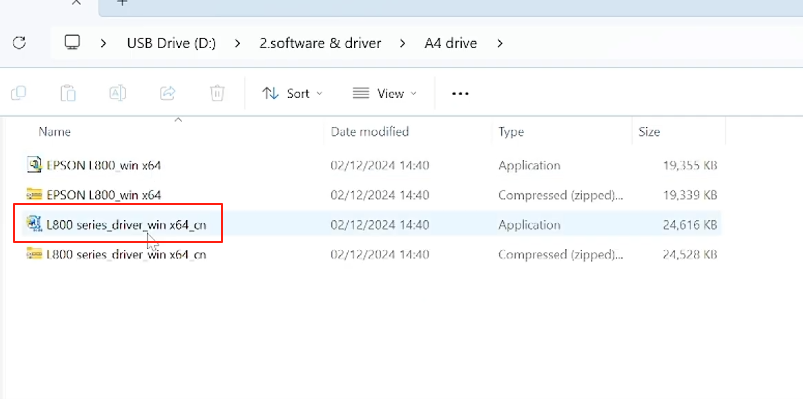
Double click the L800 driver to install it.
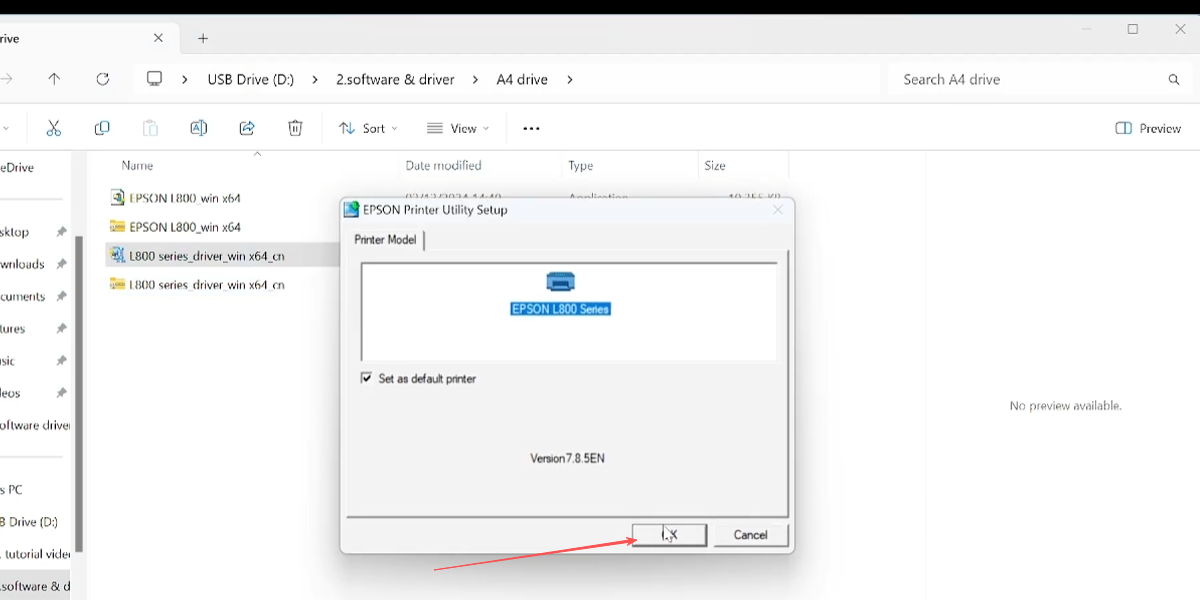
Confirm the selection and click OK.
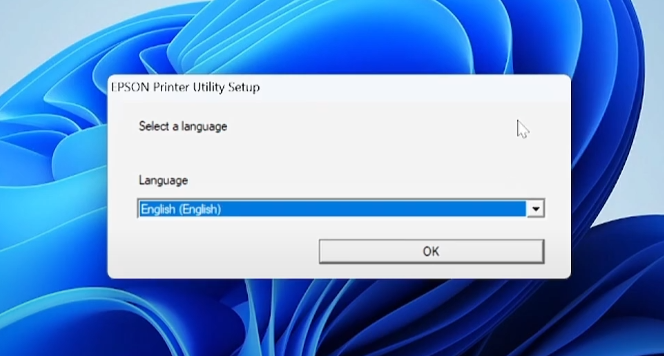
Confirm the language setting and click OK.
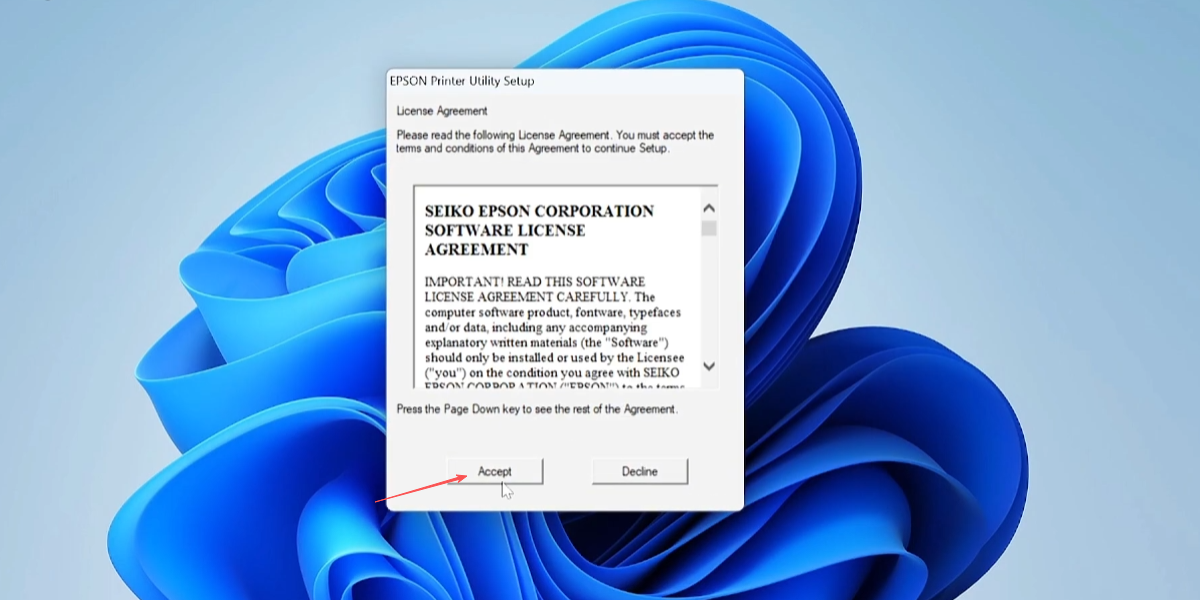
Read the agreement and click Accept to continue.
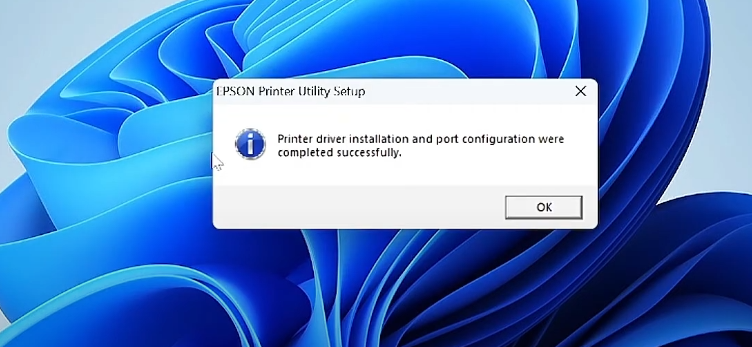
After installation, the printer icon will appear in the lower right corner tray.
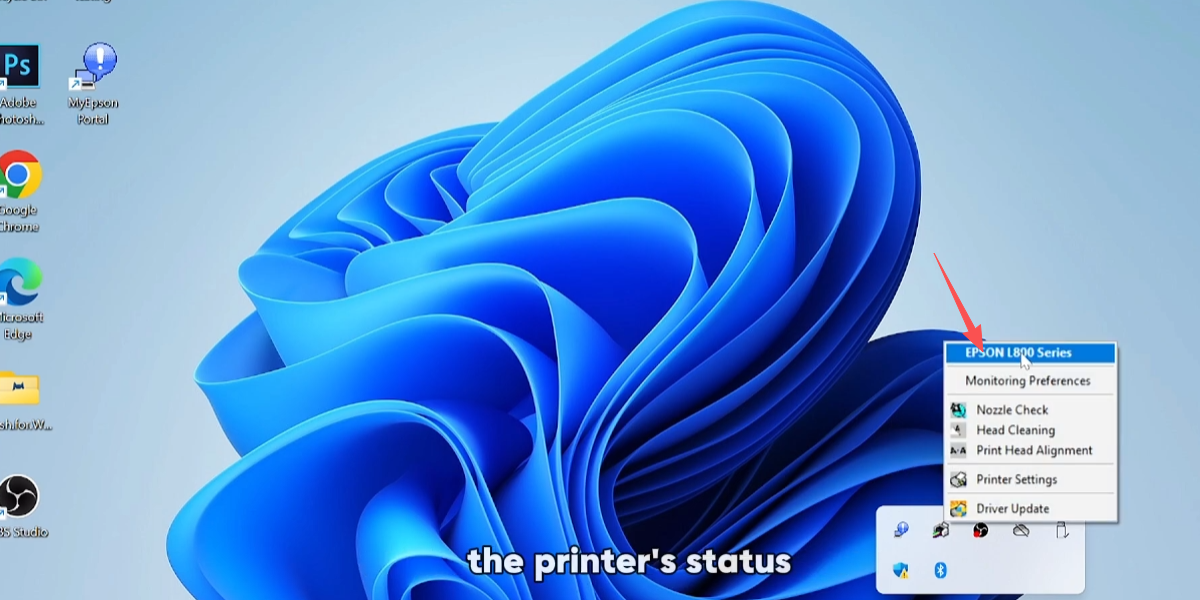
Simply click on it to check the current printer's status.
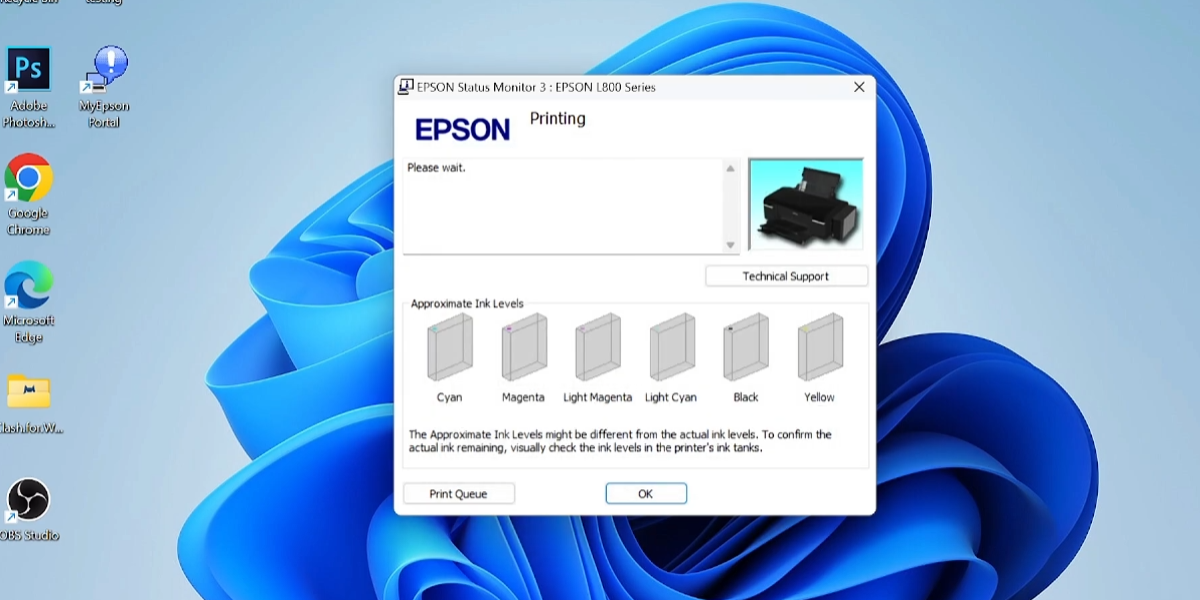
Click OK to finish the status check process.
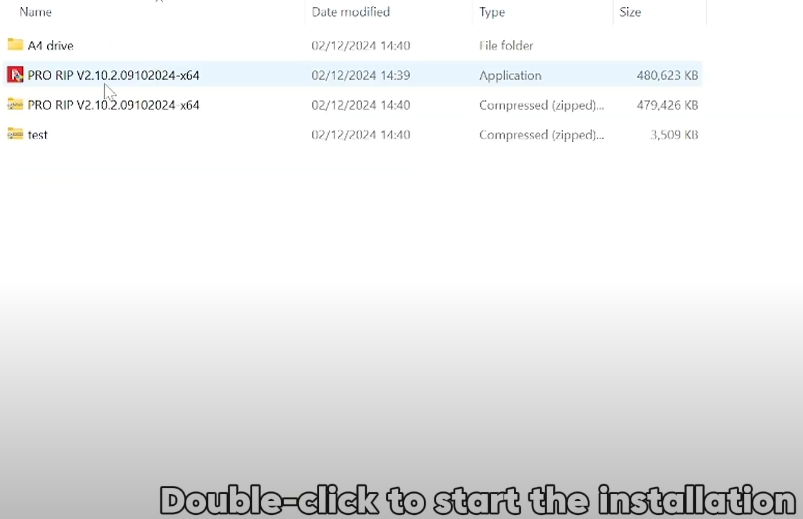
Double click the red RIP icon to start the software installation.
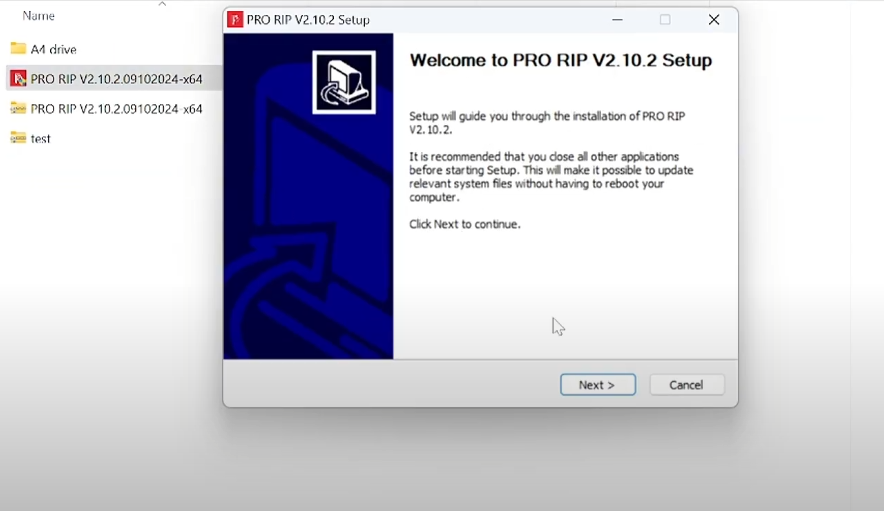
Click next to proceed with the setup wizard.
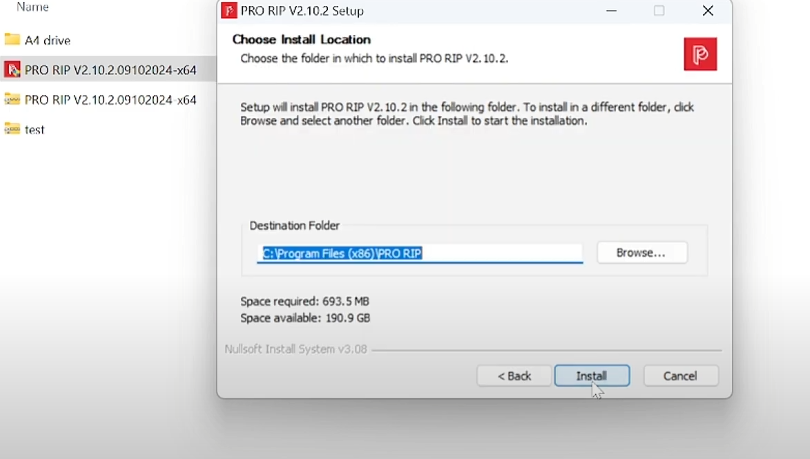
Click Install to begin copying files.
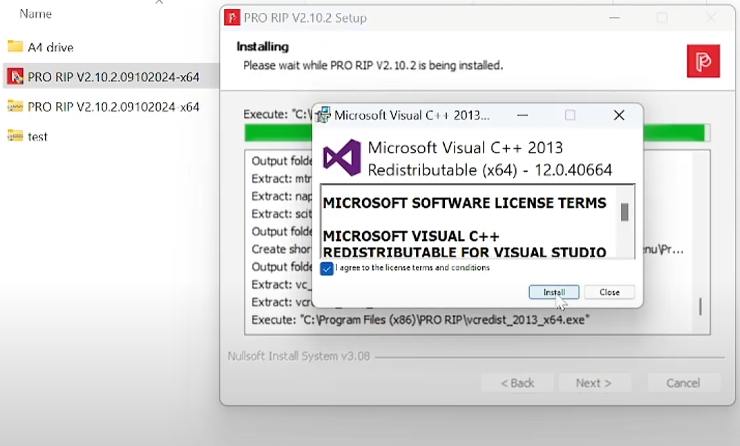
Click Install for the required system components.
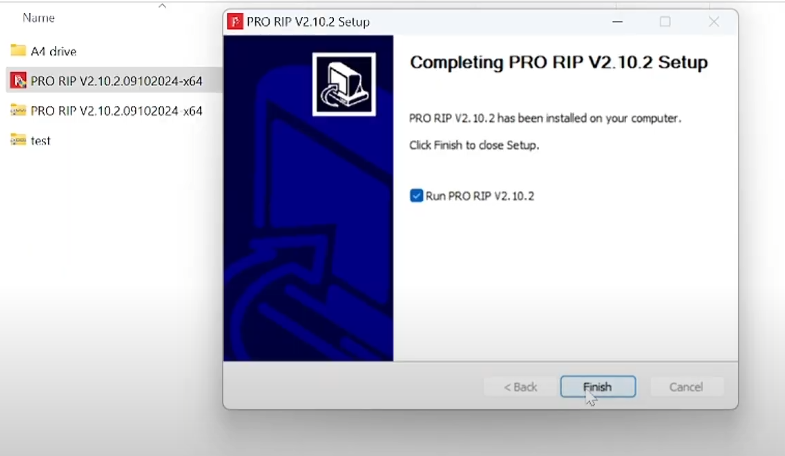
Click Install to finish the setup process.
If you run the software without the key, a "dongle missing" reminder will appear.
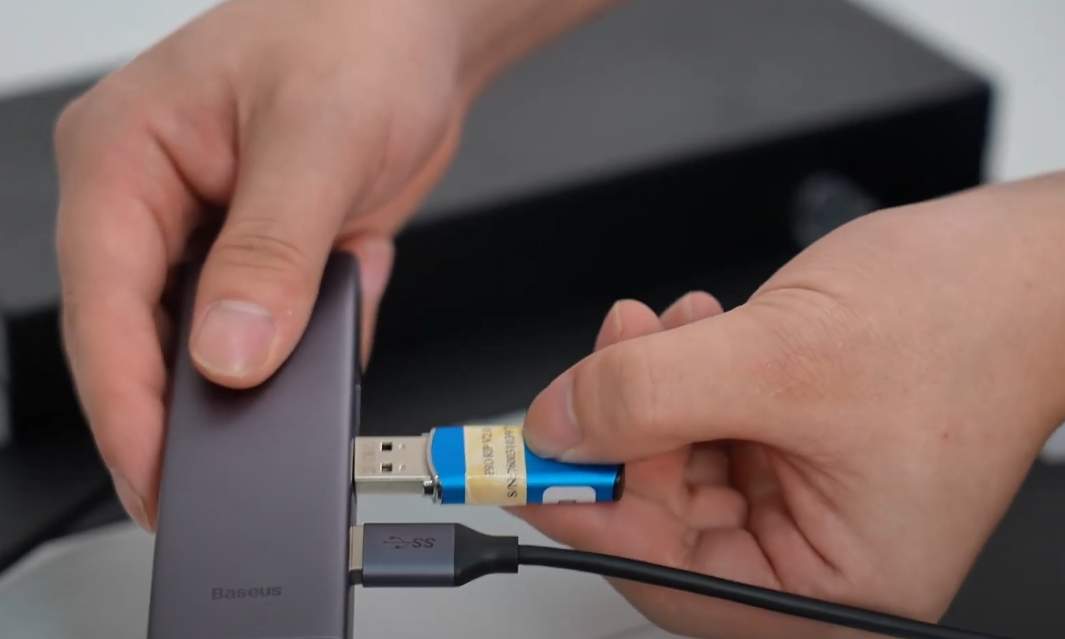
Crucial: Insert the blue dongle USB driver every time you use the software.
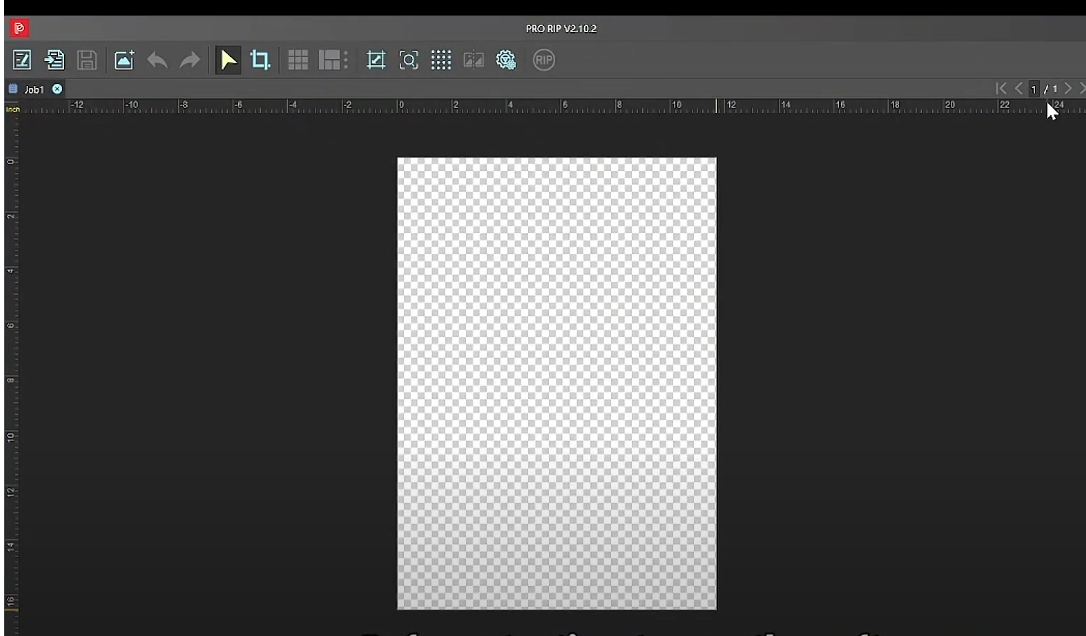
Before printing, you must perform five essential setup steps.
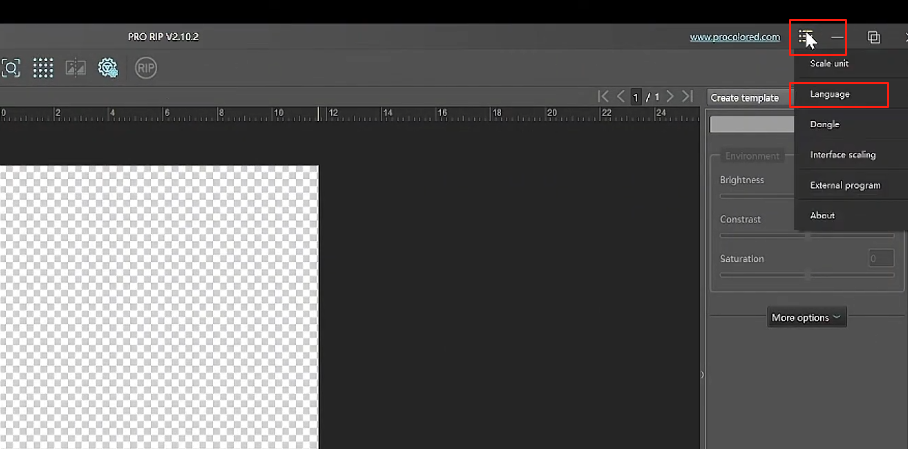
Set the measurement scale and language in the top right corner.
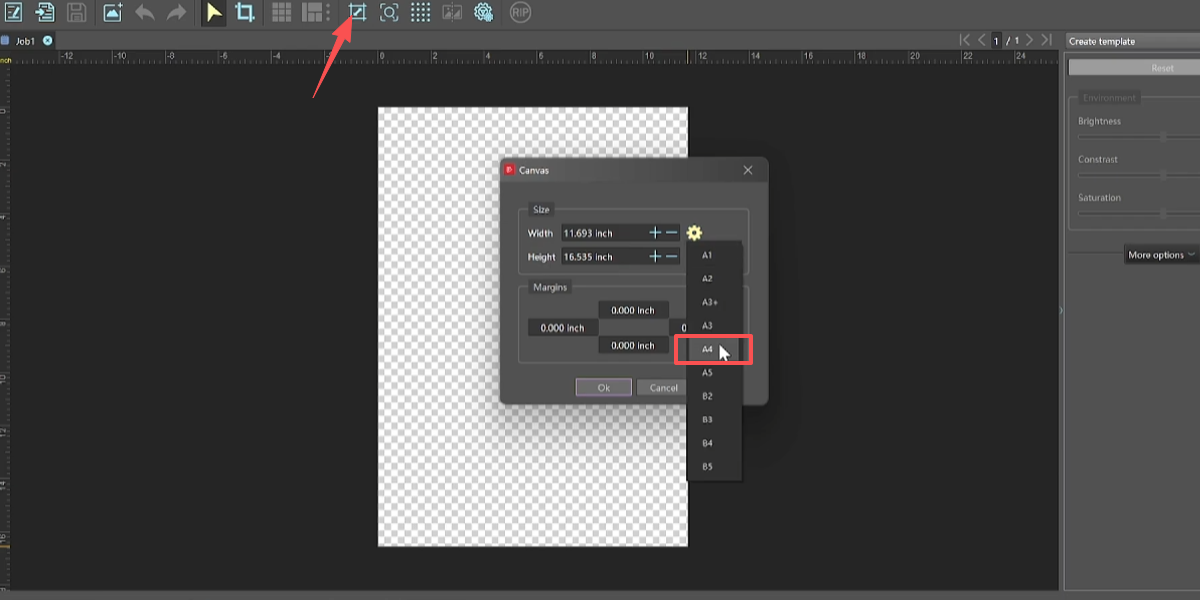
Set the canvas size to A4 for the standard workspace.
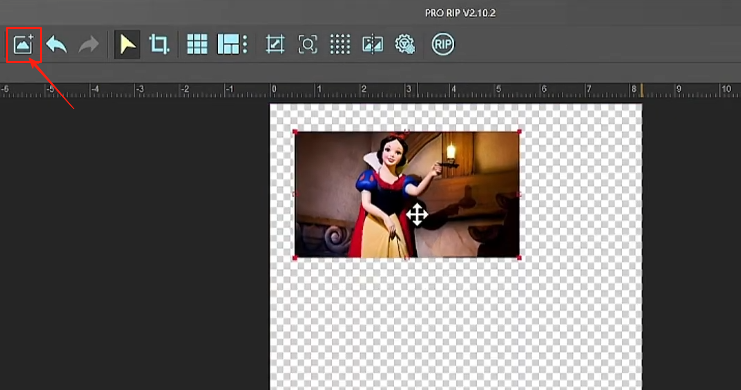
Click the picture button to import the image you wish to print.
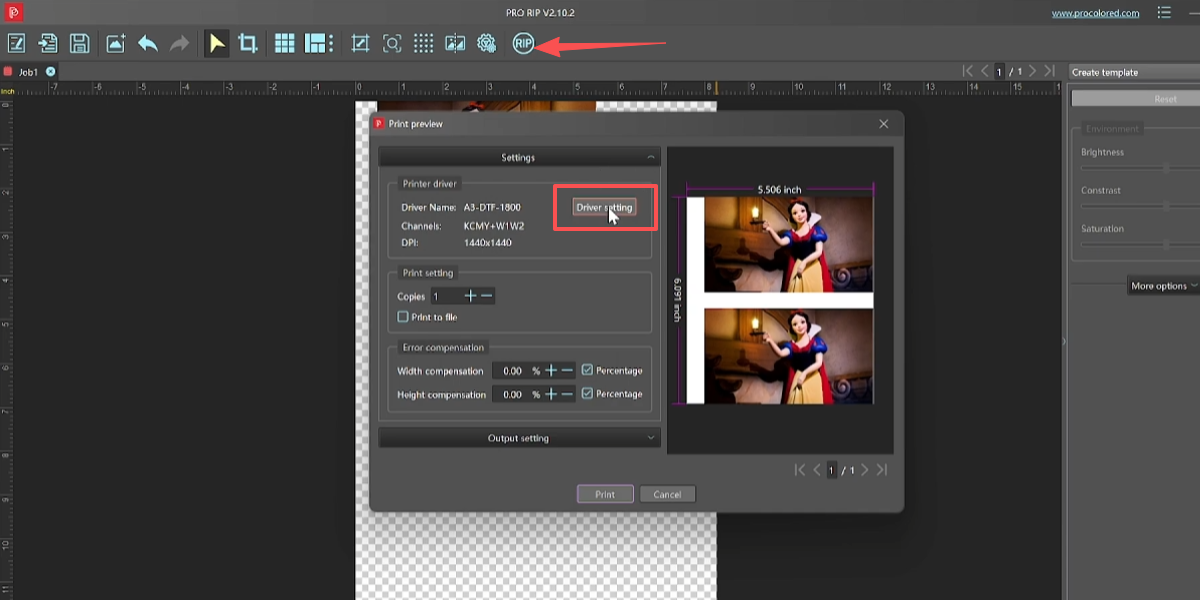
Click RIP and then check the driver settings in the popup.
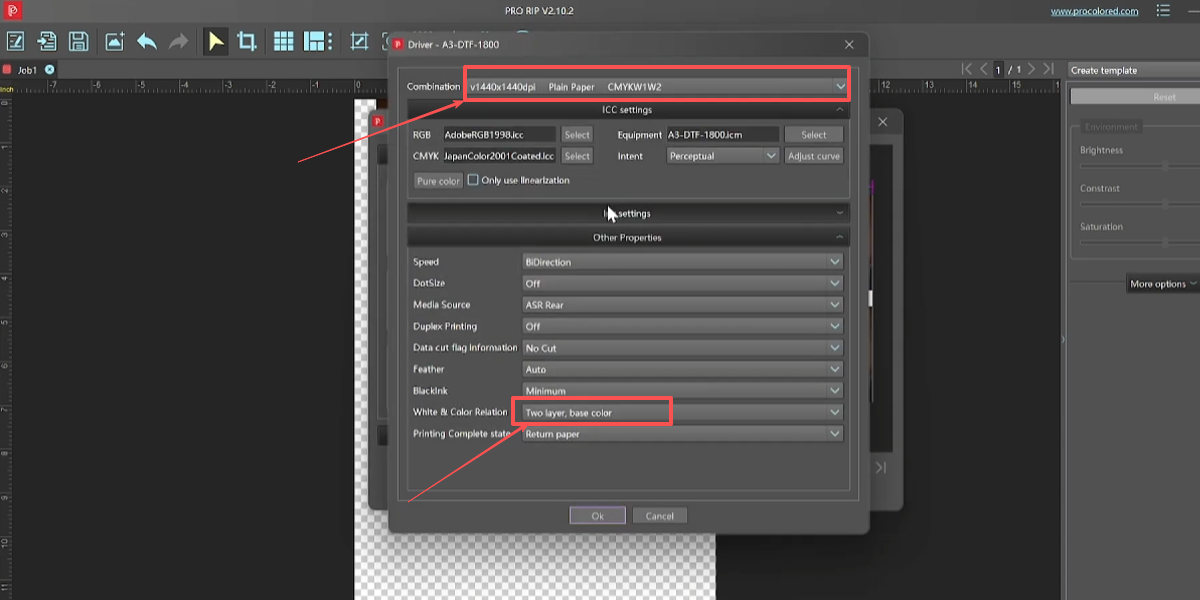
Set resolution to 1440*1440 and configure two layers (base + color).
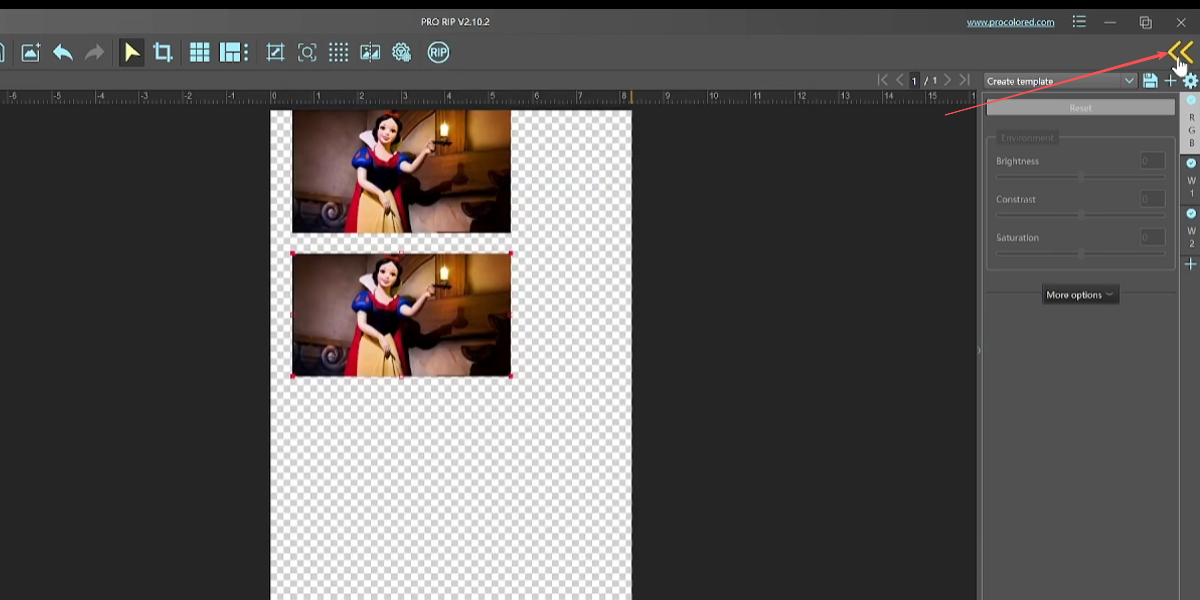
Click the icon in the right corner to access device selection.
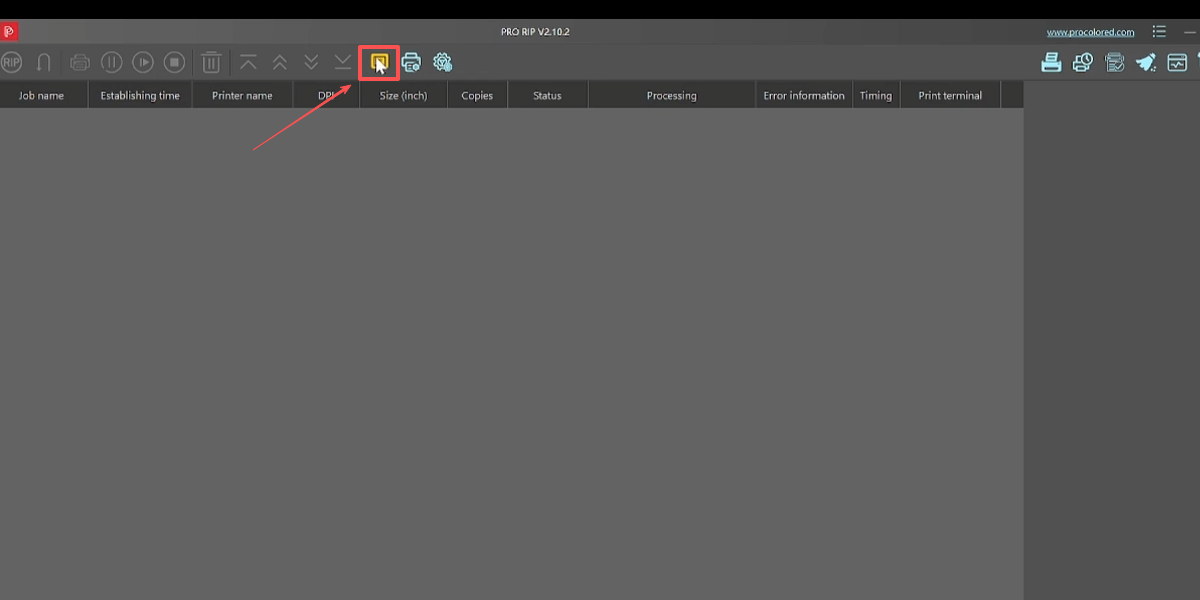
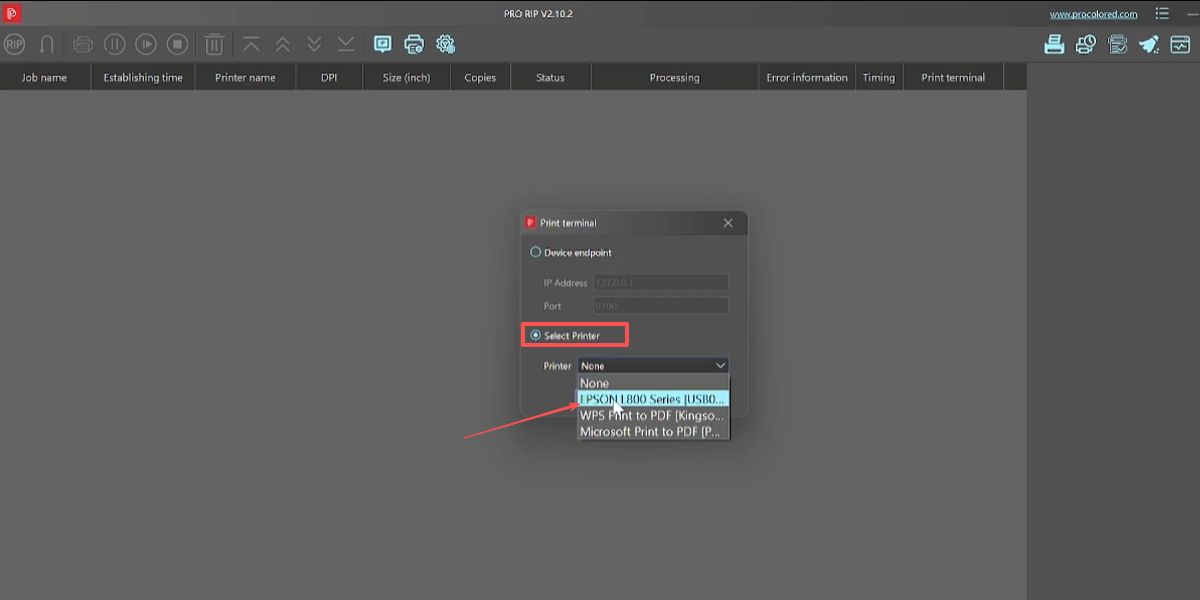
Select the correct printer driver from the dropdown menu.
Choose the correct color profile (ICC) for your specific ink and media.
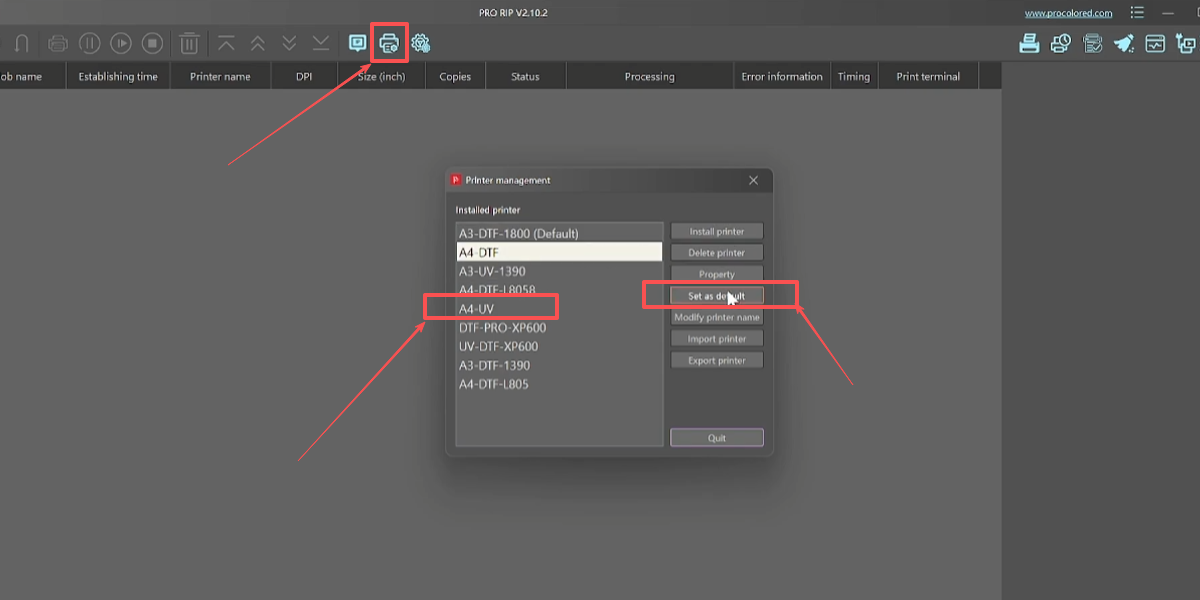
Finally, select the A4-UV model and click "Set Default" to finish.