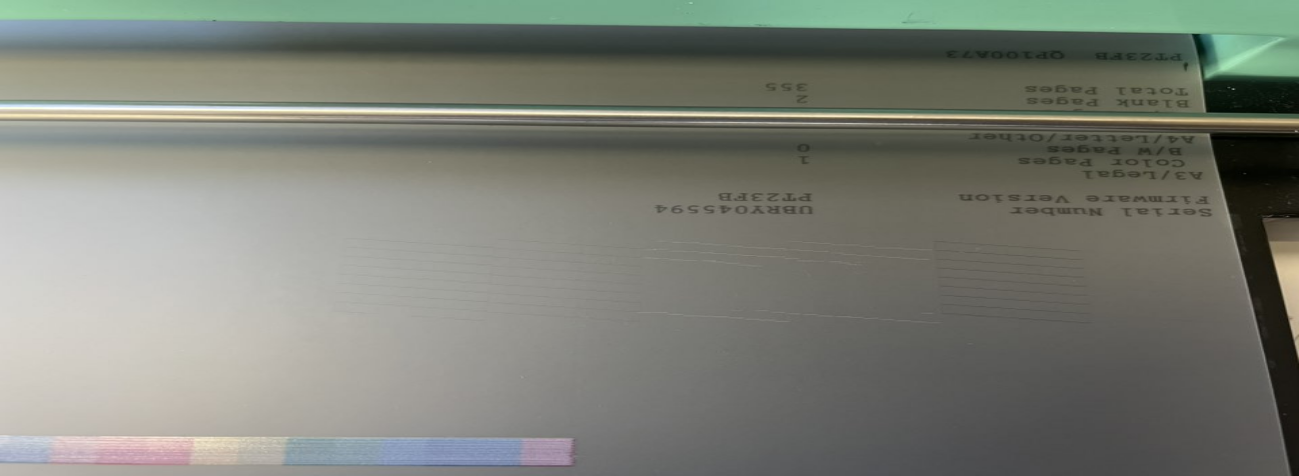
 01White ink is prone to settling, which can cause thin white ink output or broken lines in the print head test page. |
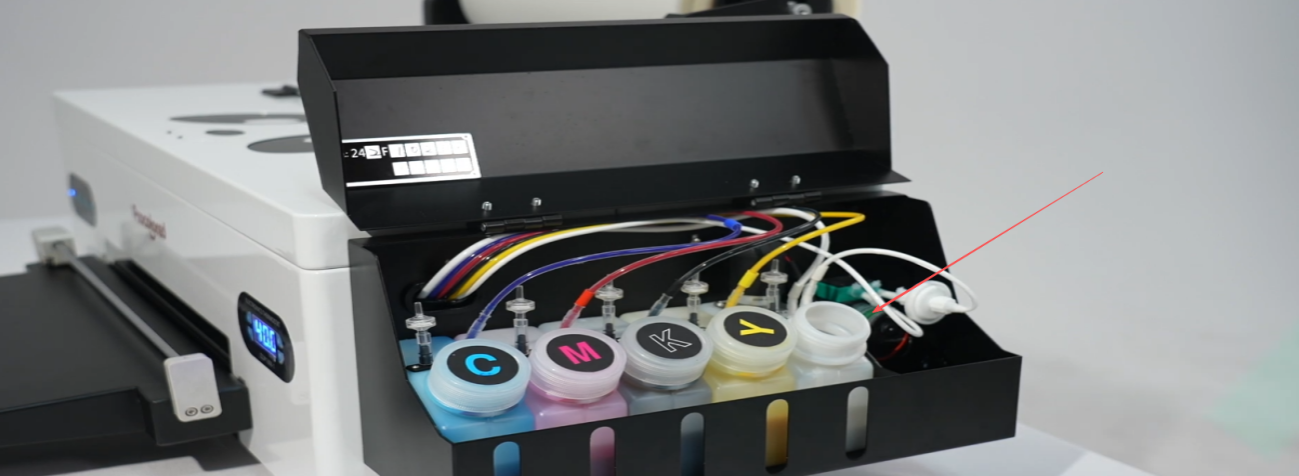 02Check the white ink volume — ensure it remains above the 1/3 mark. Insufficient ink may cause printing problems. |
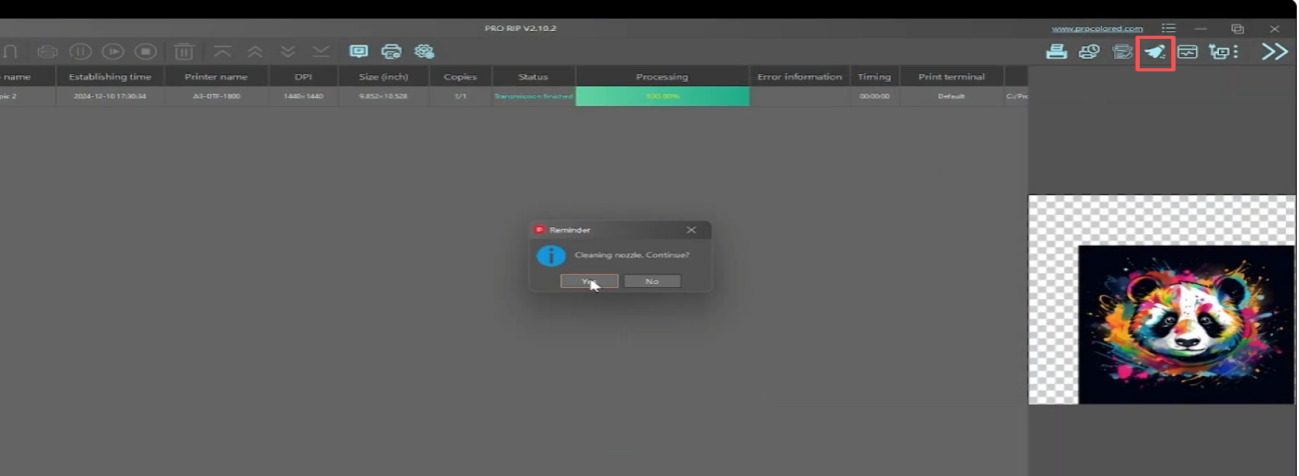 03Clean the print heads via the software. |
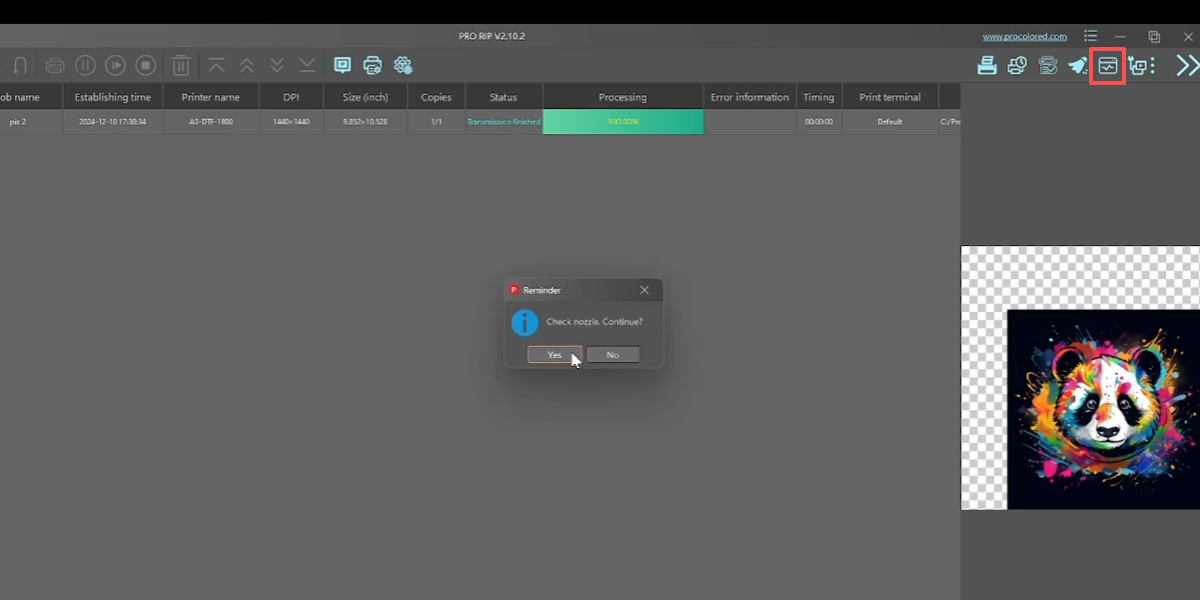 04Print a nozzle test page to inspect the print head status. |
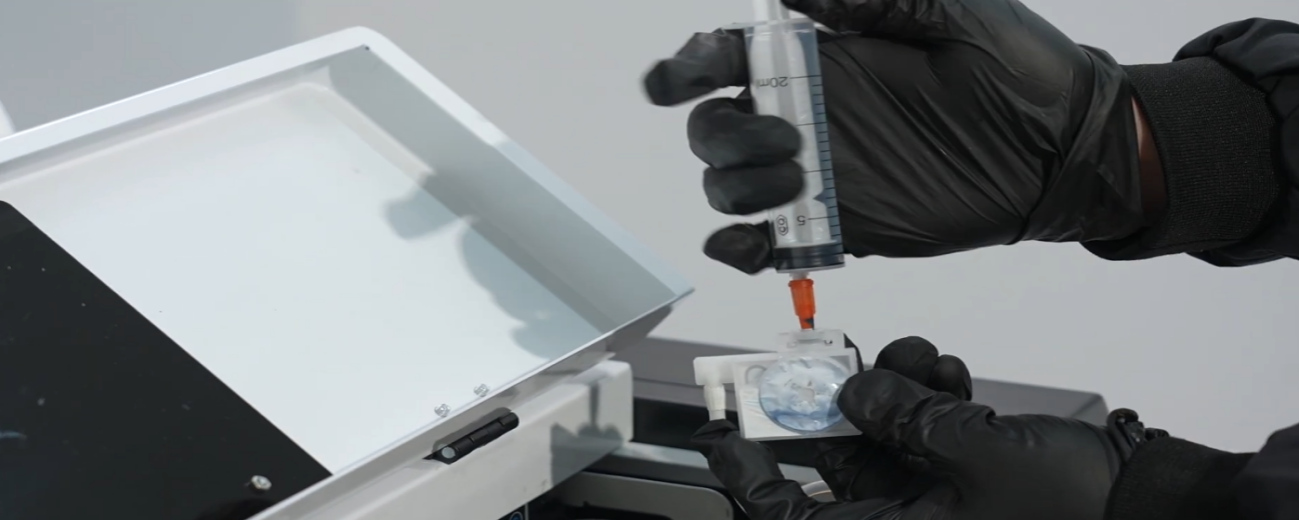 05If the test page still shows white broken lines, draw 3 ml of ink from the ink cartridge. |
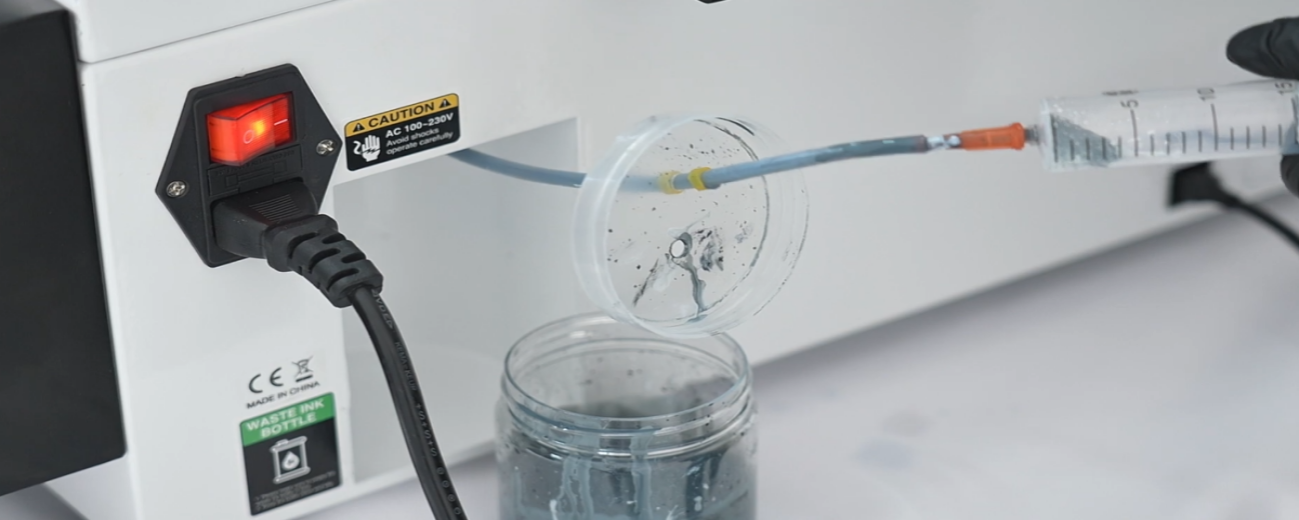 06And draw 5 ml of ink from the waste ink tube. |
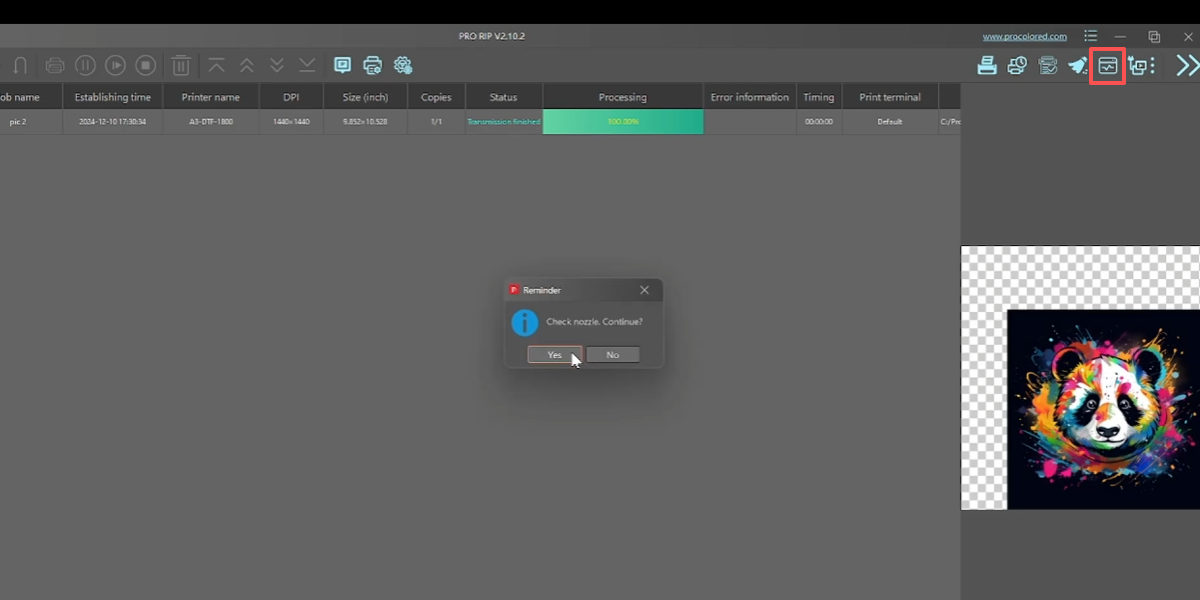 07Use the flushing function in the software, then print another test page to recheck print head status. |
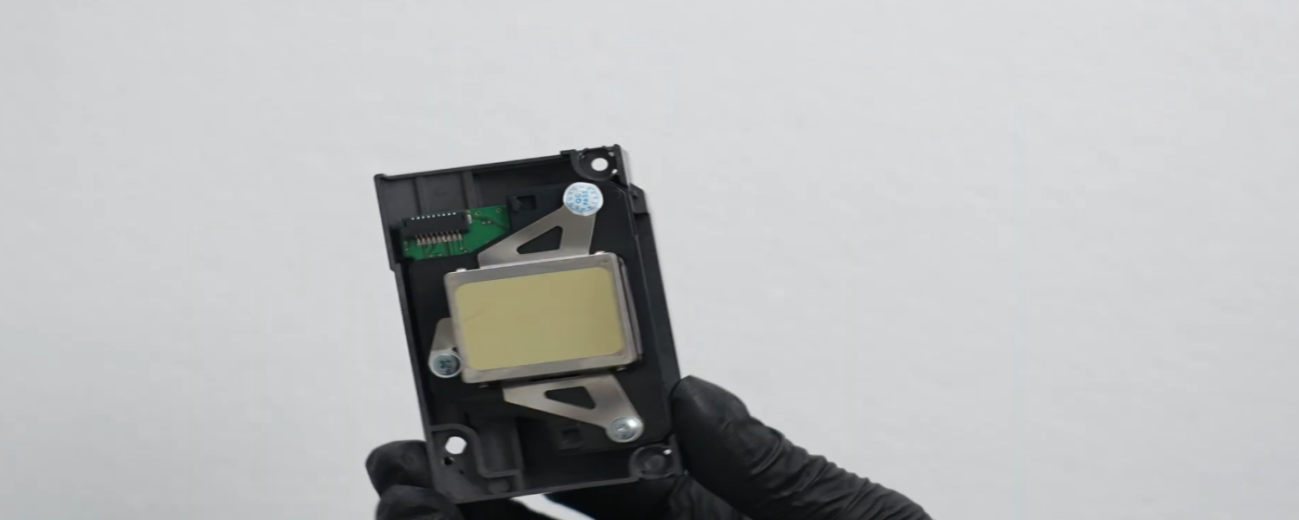 08If broken lines persist, repeat the cleaning and extraction 2–3 times. If still unresolved, replace the print head. |
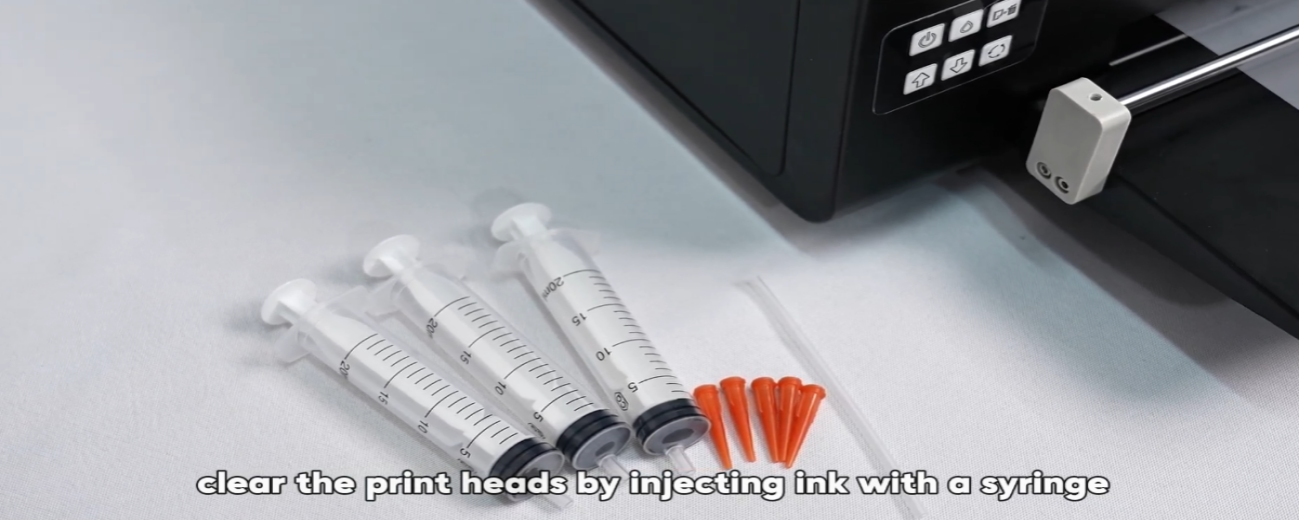 09Do not inject ink with a syringe to clear print heads — improper handling can damage both the print heads and the motherboard. |